Nine steps from "I built an app" to "it's live", in the order you actually do them, with Apple's current requirements and a full guide for every step.
By Martin Lasek · Oct 8, 2026 · 7 min read
To publish an app on the App Store, you join the Apple Developer Program for 99 USD a year, create an app record in App Store Connect, build the app with Xcode 26 or later and upload it, then fill in the product page, the age rating and the privacy details. You submit the version for review, Apple reviews most submissions within a day or two, and once it's approved you release it, right away or on a date you choose.
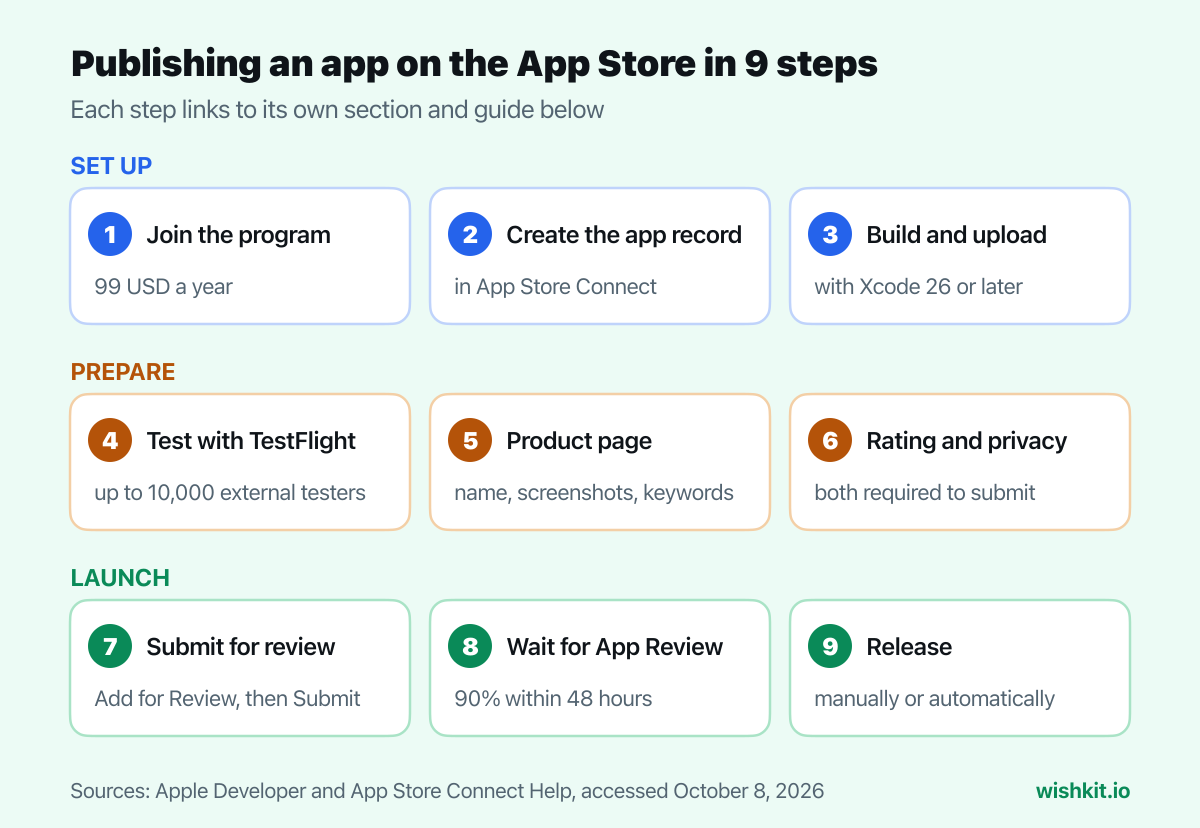
A free Apple developer account lets you build and run apps on your own devices, but publishing needs the paid membership: 99 USD a year in local currency where available. You enroll either as an individual, and your legal name appears as the seller, or as an organization, which needs a legal entity and a D-U-N-S Number. Apple expects to confirm an individual membership within 24 hours of payment. Organizations wait for Apple's verification first, and a new D-U-N-S Number alone can take up to 7 business days.
If you plan to sell the app or in-app purchases, also enroll in the App Store Small Business Program before your first paid release. It lowers Apple's commission from 30% to 15%, but only from about two weeks after the fiscal month in which Apple approves you.
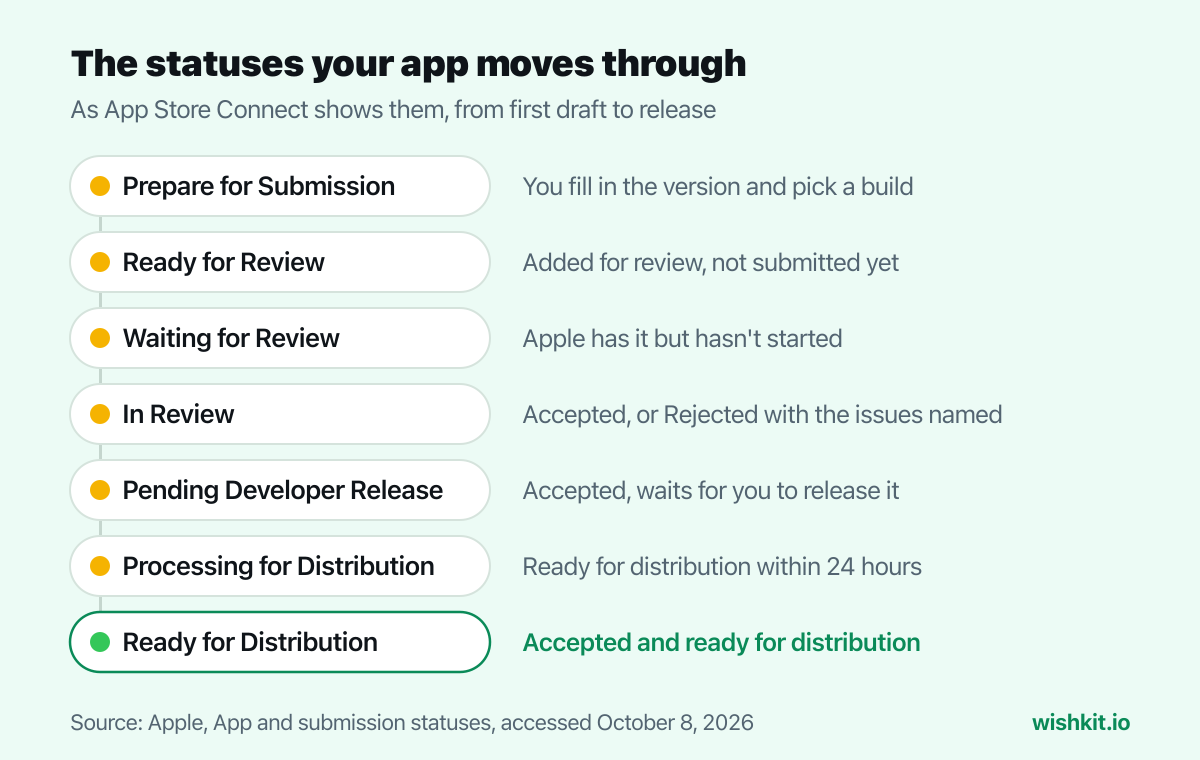
Before the first upload, the app needs a record in App Store Connect. In Apps, click the add button, choose New App, select the platforms, and enter the name, primary language, bundle ID and an SKU of your choice. The new record starts in the status Prepare for Submission.
"You can't add an app to your account until the Account Holder signs the latest agreement in the Business section."
The app name has to be free: Apple allows one app per name in each localization. If someone else uses yours and you hold the trademark, you can file a claim.
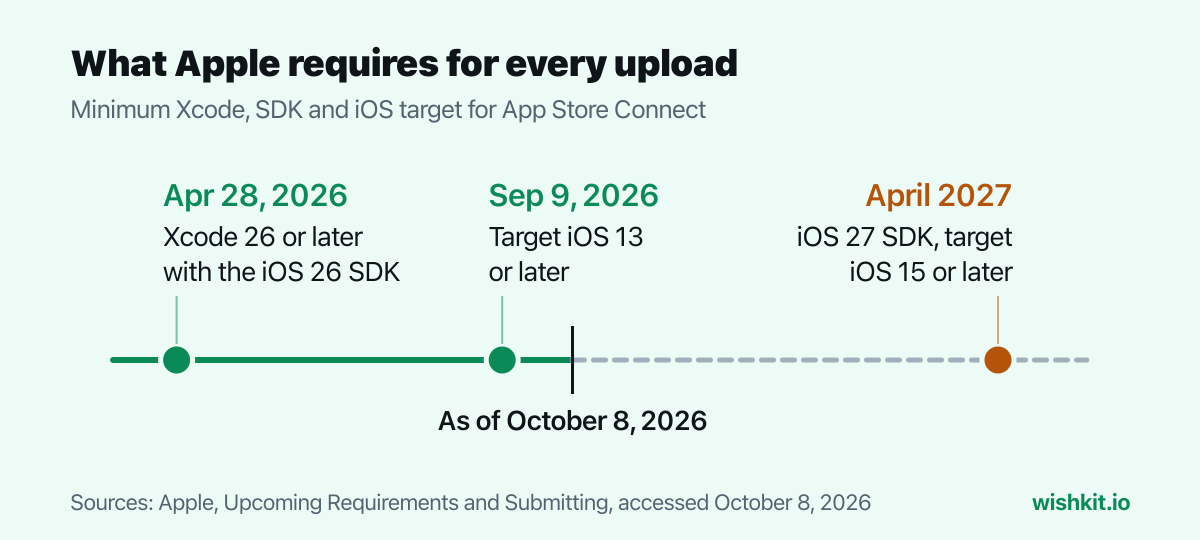
Apple sets a minimum for every upload. Since April 28, 2026, apps "must be built with Xcode 26 or later using an SDK for iOS 26", and since September 9, 2026 they must target iOS 13 or later. The next step is announced on Apple's submitting page:
"Starting April 2027, apps and games uploaded to App Store Connect need to meet the following minimum requirements. iOS and iPadOS apps must be built with the iOS & iPadOS 27 SDK or later, and target iOS 15 or later"
You upload a build from Xcode (Product, Archive, then Distribute App), or with Transporter, altool or Xcode Cloud. Each build is processed by Apple before it shows up in App Store Connect, and you get an email when it's ready. The app icon travels inside the build, so it has to be right before you upload: see app icon sizes. If you automate uploads, Transporter accepts the same tokens as the App Store Connect API.
Every uploaded build can go to testers first. Your own team installs it right away as internal testers, and Apple's program page says you can invite "up to 10,000 external users" by email or with a public link. Builds for external testers go through a review of their own first. It's also the easiest way to meet Apple's first review rule, which asks that your app "has been tested on-device for bugs and stability".
Apple's checklist for the product page: the app's "name, icon, description, screenshots, app previews, and keywords". Add a subtitle and promotional text if you want them. Every app also needs a support URL and a privacy policy URL, and both have to work: broken links are among the most common reasons for rejection.
Four things in App Store Connect that you can't skip:
Before you submit, fill in the App Review Information: a demo account if anything sits behind a login, and notes on anything a reviewer couldn't find on their own. Then, on the version page, check that the right build is selected, click Add for Review, and in the draft submission click Submit for Review. The status changes to Ready for Review when you add it, to Waiting for Review once you submit, and to In Review when Apple starts.
Read the App Store Review Guidelines guide before this step. Most rejections come from a handful of rules, and the first one, App Completeness, covers crashes, placeholder content and missing demo accounts.
Apple's App Review page gives the numbers: at least half of all submissions are reviewed in less than 24 hours, and 90% in less than 48. Apple adds: "If your submission is incomplete, review times may be delayed or your submission may not pass."
If Apple rejects the version, App Store Connect names the guideline it broke, and you can reply to App Review there before you fix and resubmit. How long App Store review takes covers the timing, expedited reviews and what to do when a review takes longer.
Before you submit, you pick one of three release options: release manually, release automatically after approval, or release automatically but not before a date you set. With the manual option, the version waits in Pending Developer Release until you click Release This Version. Apple says it "may take up to 24 hours" for it to appear on the App Store after that.
For updates you can also choose a phased release, which hands the new version to users with automatic updates over seven days, so you can pause if something breaks.
The first version is the start, not the end. Ask for ratings at the right moment with Apple's review prompt, reply to App Store reviews, and find out what to build next. WishKit adds a feature request board to your app, where users suggest and vote on features, so version 1.1 is built on what they asked for.
99 USD a year for the Apple Developer Program. If you sell the app or in-app purchases, Apple also takes a commission of 30%, or 15% in the Small Business Program. Free apps pay no commission.
Apple reviews 90% of submissions in less than 48 hours, and a released version can take up to 24 hours to appear. Before that, Apple expects to confirm an individual membership within 24 hours of payment. Companies take longer, since they need a D-U-N-S Number.
No. You can enroll as an individual, and your legal name is shown as the seller. A company needs to be a legal entity with a D-U-N-S Number.
Only with a fee waiver, which Apple limits to nonprofits, accredited educational institutions and government entities that don't sell digital goods. Everyone else pays the 99 USD membership.
Xcode 26 or later with the iOS 26 SDK, since April 28, 2026. From April 2027, Apple requires the iOS 27 SDK and iOS 15 as the minimum target.
Yes, by uploading and submitting a new version, which goes through App Review again. The app icon, for example, only changes with a new version.
Setup takes less than a minute. Free plan included, no credit card required.
Try WishKit for free