Testers send screenshots and comments straight from your beta. Here is where they land, what Apple attaches to each one, and what TestFlight can't do with them.
By Martin Lasek · Oct 5, 2026 · 7 min read
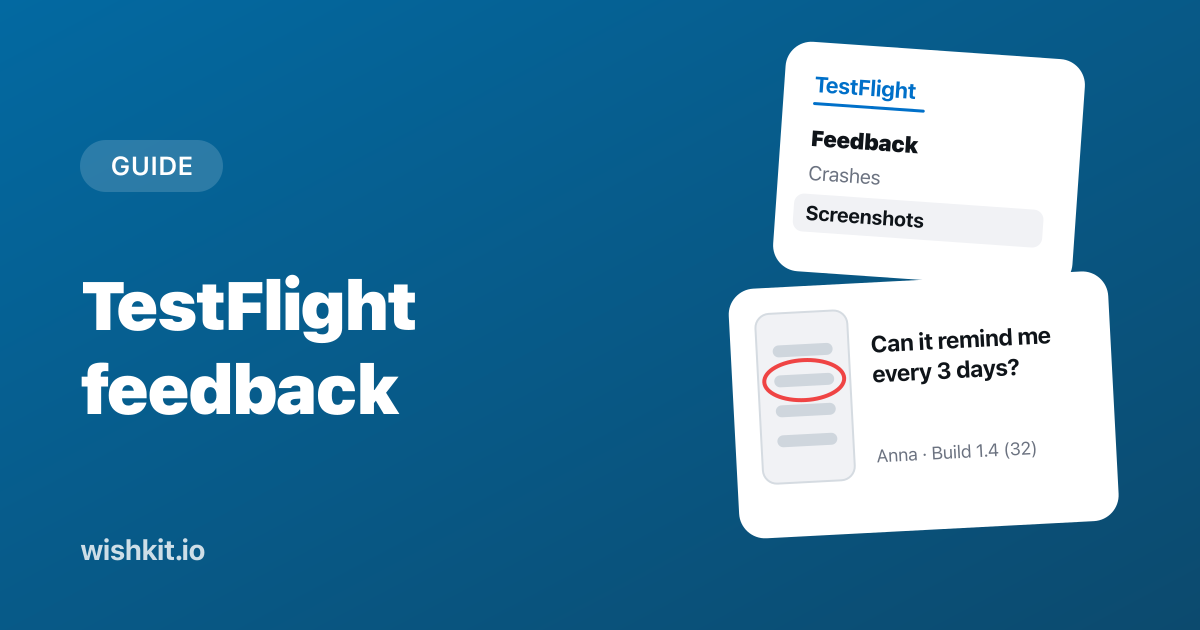
TestFlight feedback is what your beta testers send you while they use a build: a screenshot with a comment, a note from the TestFlight app, or a crash report with a few words of context. It all lands in App Store Connect, and finding it the first time takes longer than it should. If your beta isn't running yet, start with how to beta test an iOS app with TestFlight.
This guide covers where it lives, what each report contains, how testers send it, and where TestFlight stops being enough. The examples use a made-up app called Plant Diary.
Open your app in App Store Connect, click the TestFlight tab, and below Feedback in the sidebar click Screenshots or Crashes. Each report holds the tester's comment, their screenshot or crash report, and details about their device. Testers send it by taking a screenshot inside your beta app, or with Send Beta Feedback in the TestFlight app.
Builds
iOS
Feedback
Crashes
Screenshots
Testers
All (24)
Can it remind me every 3 days instead of 7? My cactus doesn't need that much water.
Crash reports can be downloaded for 120 days. If you want feedback to reach you without opening App Store Connect, Apple offers webhooks that call your server when a tester submits feedback, and App Store Connect API endpoints that return the screenshot and crash submissions.
Besides the comment and the screenshot or crash report, Apple lists what the detailed feedback view shows about every report:
Whether you see the tester's name and email depends on how you invited them:
"When a tester is invited by an invitation email, their email address is displayed in the detailed feedback view. If a tester is invited using a public link, they appear as anonymous unless they enter their email address when submitting feedback."
That matters for follow-ups. A tester from a public link who left no email is a dead end: you can read what they wrote, but you can't ask what they meant.
Comments can be up to 4,000 characters, according to Apple's TestFlight guide for testers. Testers who joined through a public link can add their email address, but they don't have to.
Open TestFlight, tap the app, tap Send Beta Feedback, choose whether to include a screenshot, write the comment and tap Submit.
When the beta crashes, TestFlight asks the tester whether to send the crash details, and they can add a comment. You can switch screenshot and crash feedback off for a tester group in the group's Settings tab, below Tester Feedback. Testers in that group can still email you from the TestFlight app.
Most testers know none of this. Put one line in What to Test, the notes testers see for each build: "Take a screenshot anywhere in the app to send feedback." It is the cheapest way to get more of it.
TestFlight is excellent for bugs. A screenshot with a red circle, the exact build and the device is most of a bug report. For ideas and feature requests it has four gaps:
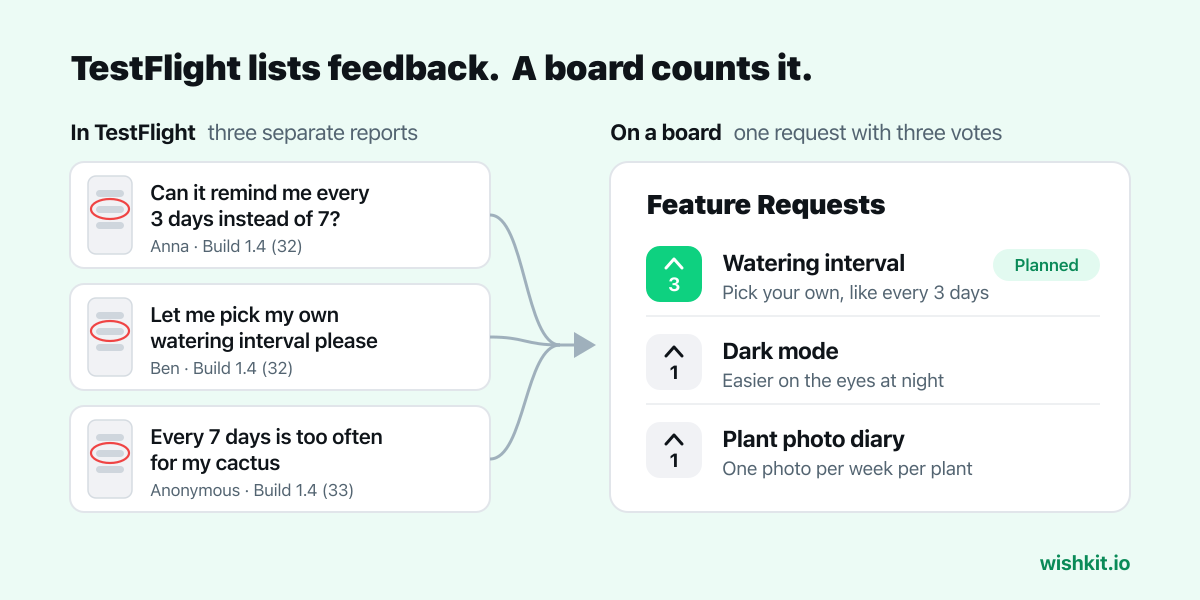
The fix for all four gaps is a feature request board inside the app, in the beta and in the release. Testers post ideas, vote on each other's, and see what is planned. The votes from the beta are still there on launch day.
That is what WishKit does. You add the Swift package, configure it once and show the board from a settings row or a tab, as in the SwiftUI tutorial. The beta and the App Store build use the same project, so requests posted during the beta carry over to your first real users.
Keep both. Let TestFlight handle bugs and crashes, where its device details shine, and let the board handle ideas, where votes matter.
In App Store Connect: open the app, click the TestFlight tab, then Screenshots or Crashes below Feedback in the sidebar. Screenshot feedback can also be opened in Xcode, with the Open in Xcode button in its detailed view.
Not inside TestFlight. If the tester was invited by email, or added their email to the report, you can write to them directly.
They joined through a public link and didn't add their email address when they sent the feedback.
If they are in several tester groups and one of those groups has feedback switched off, they can only send feedback by email from the TestFlight app.
Up to 90 days. After that the build is no longer available to testers, so upload a new one to keep the beta running.
Yes. App Store Connect webhooks call your server when a tester submits feedback, and the App Store Connect API can then fetch the screenshot or crash submission.
Setup takes less than a minute. Free plan included, no credit card required.
Try WishKit for free